Stop Copy-Pasting: How to Automatically Save Slack Messages as Jira Tickets
Tired of manually copying Slack messages to Jira? Learn 3 automation methods that save hours every week and ensure no feedback gets lost.
You just spent 20 minutes copying a Slack thread into a Jira ticket. Again.
The customer reported an issue in #support. You had to:
- Read through 15 messages to understand the problem
- Open Jira, click "Create Issue"
- Write a coherent summary
- Copy relevant screenshots
- Add the Slack link for context
- Assign it to someone
Meanwhile, three more issues landed in Slack.
This is not sustainable. And there's a better way.
The Hidden Cost of Manual Slack-to-Jira
Let's do the math:
| Activity | Time | Frequency | Weekly Cost | |----------|------|-----------|-------------| | Find message worth capturing | 2 min | 20x/week | 40 min | | Create Jira ticket | 5 min | 20x/week | 100 min | | Summarize thread context | 3 min | 10x/week | 30 min | | Follow up when resolved | 2 min | 10x/week | 20 min |
Total: ~3 hours per week per person doing this work.
At $75/hour fully-loaded cost, that's $11,700/year spent on copy-paste.
Plus the hidden costs:
- Messages that never get captured (lost ideas)
- Duplicates because no one remembered the first report
- Context lost because threads are hard to summarize
- Frustration from repetitive work
3 Ways to Automate Slack-to-Jira
Method 1: The Emoji Reaction Approach
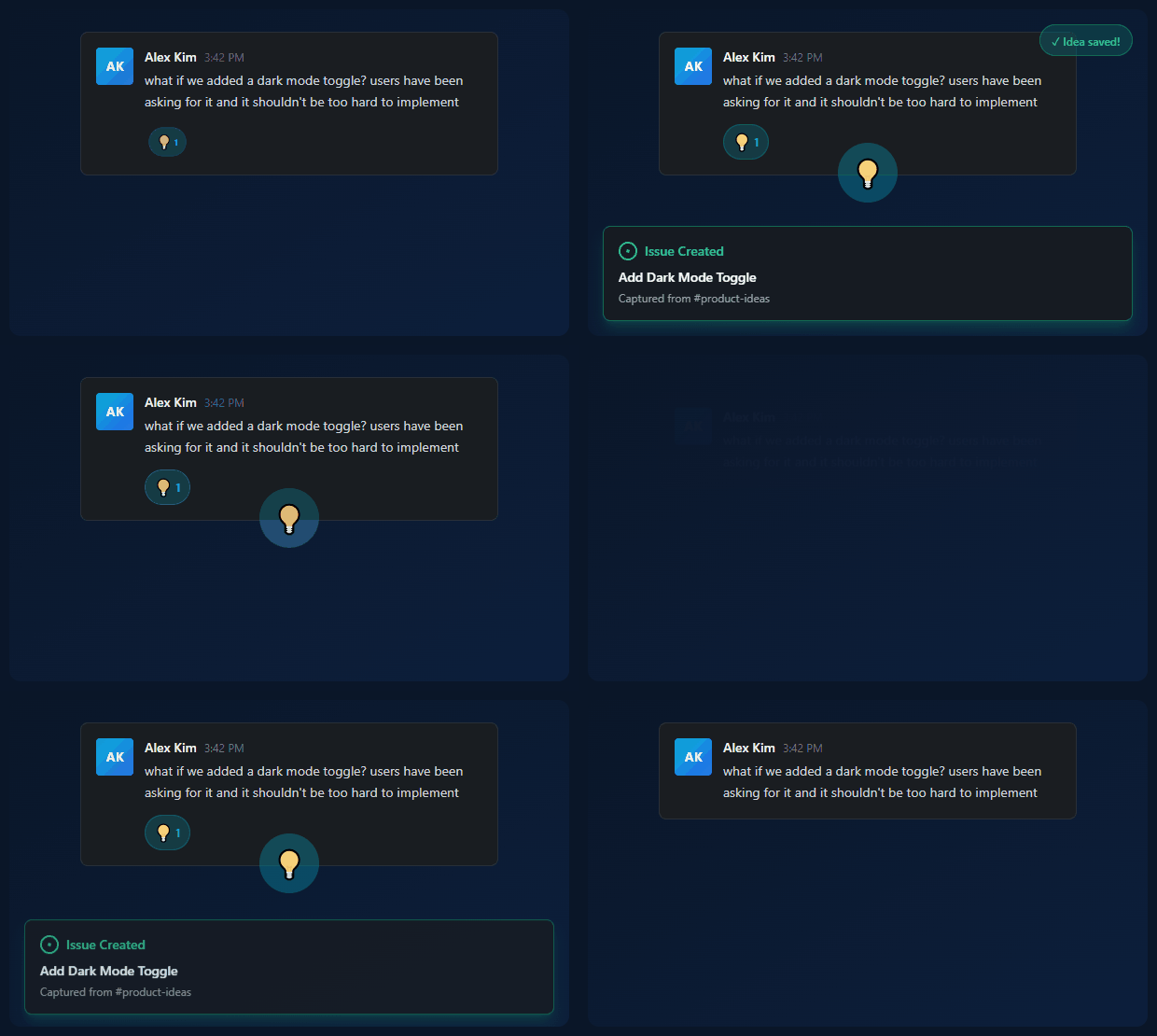
Concept: React to any Slack message with an emoji, and it automatically becomes a Jira ticket.
Why this works:
- Zero friction—anyone can do it
- Captures message + thread context
- Works on mobile
- No context switching
Implementation options:
Option A: Zapier
- Create a Zap: Trigger = "New Reaction Added in Slack"
- Filter: Reaction = your chosen emoji (e.g., 🎫)
- Action: Create Jira Issue
- Map fields: Message → Description, Channel → Label, etc.
Limitation: Zapier can only trigger on reactions in public channels, and thread context is limited.
Option B: Custom Slack App
Build a bot that listens for reaction_added events and calls the Jira API. More control, but requires development time.
Option C: IdeaLift Purpose-built for this. React with emoji → message captured with full thread → AI summarizes → syncs to Jira. Setup takes 10 minutes.
Method 2: The Slash Command Approach
Concept: Use /jira create directly in Slack to open a ticket creation form.
Implementation: Install the official Jira Cloud for Slack app.
Flow:
- See a message worth capturing
- Type
/jira create - Fill out the form that appears
- Ticket created
Pros:
- Official, supported by Atlassian
- Free
- Reliable
Cons:
- Still manual—you have to remember to do it
- Form doesn't auto-populate with message content
- No thread context
- Interrupts your flow
Best for: Occasional ticket creation, not high-volume capture.
Method 3: The Channel-Based Approach
Concept: Every message in specific channels automatically becomes a Jira ticket.
Implementation:
- Create dedicated channels: #bugs, #feature-requests, #support-tickets
- Use Zapier or custom integration to watch these channels
- Every new message → new Jira ticket
Pros:
- Fully automatic
- Clear expectations (post here = creates ticket)
Cons:
- Creates noise—not every message should be a ticket
- Conversations create multiple tickets
- No filtering or curation
Best for: Very specific, low-volume use cases like formal bug report channels.
The Best Workflow: Curated Capture
After helping hundreds of teams, here's what works best:
Step 1: Capture with Emoji
Anyone can flag important messages. React with 🎫 (or whatever emoji you choose).
Step 2: AI Summarization
Long threads get automatically summarized. A 20-message conversation becomes a clear problem statement.
Step 3: Triage Inbox
Captured messages land in a triage inbox—not directly in Jira. A PM reviews weekly and decides:
- Push to Jira (approved)
- Merge with existing issue (duplicate)
- Decline (not actionable)
Step 4: Push to Jira
Approved ideas get pushed to the right Jira project with proper labels, descriptions, and links back to the original Slack conversation.
Step 5: Close the Loop
When the Jira ticket is resolved, the original Slack message gets a follow-up: "✅ Fixed in v2.4!"
Comparison: Which Method Should You Choose?
| Factor | Emoji + AI | Slash Command | Channel-Based | |--------|-----------|---------------|---------------| | Effort to capture | Very low (1 click) | Medium (form) | Very low (just post) | | Noise in Jira | Low (curated) | Low | High | | Thread context | Yes | No | No | | AI summarization | Optional | No | No | | Cost | Tool cost | Free | Zapier cost | | Setup time | 10-30 min | 5 min | 1-2 hours |
Recommendation:
- < 10 tickets/week: Slash command is fine
- 10-50 tickets/week: Emoji + triage inbox
- 50+ tickets/week: Emoji + AI + automation
Setting Up Emoji-Based Capture (Step-by-Step)
Option A: With Zapier (Budget-Friendly)
Limitations first: Zapier's Slack trigger only works with public channels and doesn't capture thread context well. But it's a good starting point.
-
Create Zap
- Trigger: Slack → New Reaction Added
- Choose your workspace
- Select trigger emoji (e.g., :ticket:)
-
Add Filter
- Only continue if reaction is on a message (not a file)
- Optionally filter by channel
-
Create Jira Issue
- Project: Map to your default project
- Summary: Use first 60 characters of message
- Description: Full message + link to Slack
-
Notify in Slack
- Post a thread reply: "Created Jira ticket PROJECT-123"
Option B: With IdeaLift (Full-Featured)
-
Install the Slack app (2 minutes)
- Add to workspace
- Choose channels to monitor
-
Connect Jira (3 minutes)
- OAuth connection
- Select default project
-
Configure emoji (1 minute)
- Choose your capture emoji
- Optional: different emojis for different ticket types
-
Done. React to any message, and it flows to Jira with:
- Full thread context
- AI summary
- Link back to Slack
- Notification when resolved
Advanced Tips
Tip 1: Use Multiple Emojis for Different Types
| Emoji | Becomes | |-------|---------| | 🐛 | Jira Bug | | ✨ | Jira Story (feature request) | | 📋 | Jira Task | | 🔥 | Jira Bug with "urgent" label |
Tip 2: Create a #captured Channel
When messages are captured, cross-post to a #captured channel. This gives visibility into what's being tracked without cluttering the original channels.
Tip 3: Weekly Triage Ritual
Block 30 minutes every Friday to:
- Review all captured items
- Merge duplicates
- Push approved items to Jira
- Decline items that aren't actionable
Tip 4: Celebrate Shipped Items
When a Jira ticket is resolved, automatically notify:
- The person who captured it
- The person who originally posted
- A #shipped channel for company visibility
This closes the loop and encourages more capture.
Measuring Success
After implementing automated capture, track:
| Metric | Before | After (Goal) | |--------|--------|--------------| | Time spent on copy-paste | 3 hrs/week | 0.5 hrs/week | | Ideas captured per week | 5-10 | 20-30 | | Duplicate tickets created | Many | Near zero | | Time from report to ticket | Hours/days | Minutes |
Conclusion
Stop copy-pasting from Slack to Jira. It's tedious, error-prone, and lets important feedback slip through the cracks.
The best teams use emoji-based capture with AI summarization and a lightweight triage process. The entire workflow takes minutes, not hours.
The ROI is clear:
- Save 3+ hours per week
- Capture 2-3x more feedback
- Never lose a customer idea again
Ready to automate your Slack-to-Jira workflow? Try IdeaLift free →
Related posts:
- Slack to Jira: The Complete 2026 Integration Guide
- How to Prioritize Feature Requests Without Going Crazy
- The Product Manager's Guide to Customer Feedback
Ready to stop losing ideas?
Capture feedback from Slack, Discord, and Teams. Send it to Jira, GitHub, or Linear with one click.
Try IdeaLift Free →